Strategy
Who you want to reach, and where you want to be seen. Two tabs, two different jobs.
Targets and Watchlist: what is the difference
The difference is who moves first.
- A target is someone you want to get in touch with: the work is getting closer until a connection request is no longer a cold request.
- A watched account is someone who publishes where you want to be read: there you do not need to connect, you need to be there when they speak.
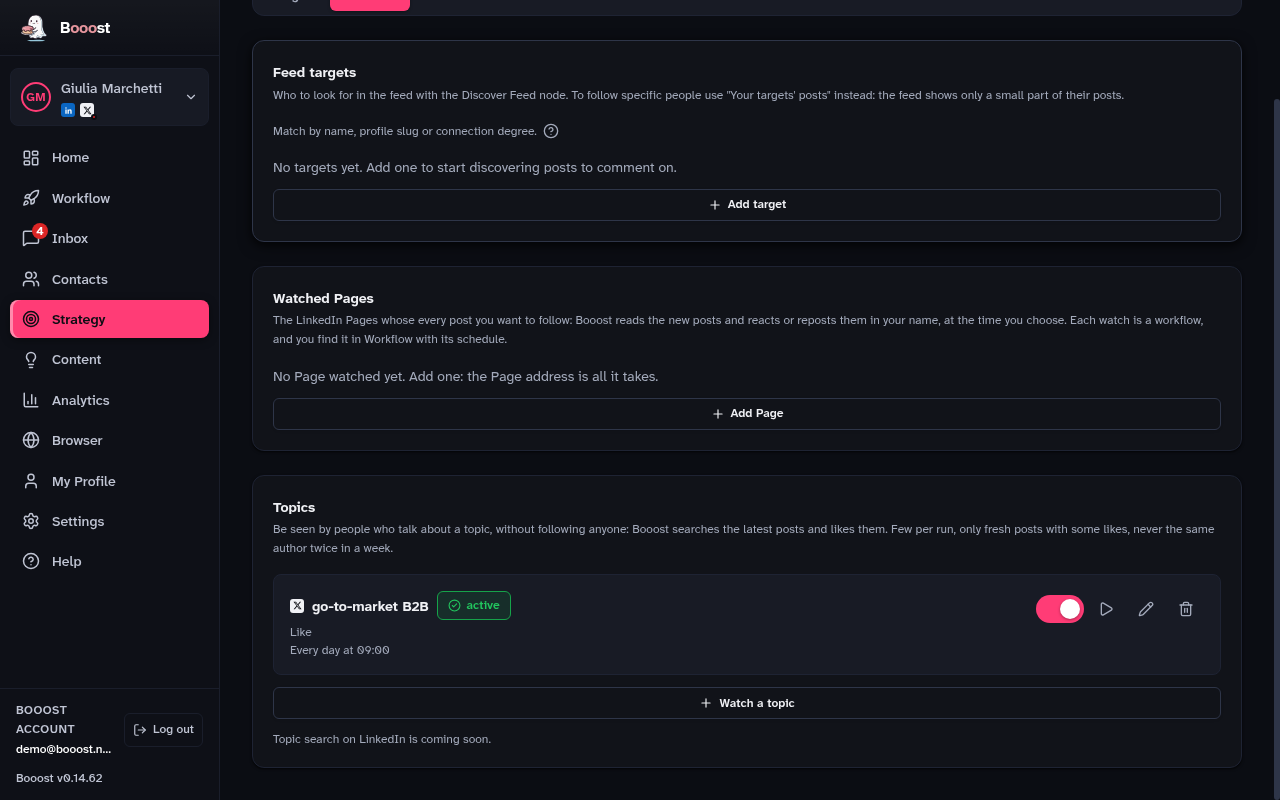
The Presidio tab holds two lists. Feed targets: the people whose posts you want to see, to reply. Watched Pages: the LinkedIn Pages whose every post you want to follow — Booost checks them at the time you choose and reacts to or reposts the new posts in your name. Each watched Page is a workflow with the «Page posts» trigger, and you find it in Workflow with its schedule: edit it there, and the tab shows it as it is. A watch built in the editor with more steps (a comment, a condition) shows up here, turns on and off from here, but is edited where it was built.
How to find targets
There are three routes, from the most automatic to the most manual.
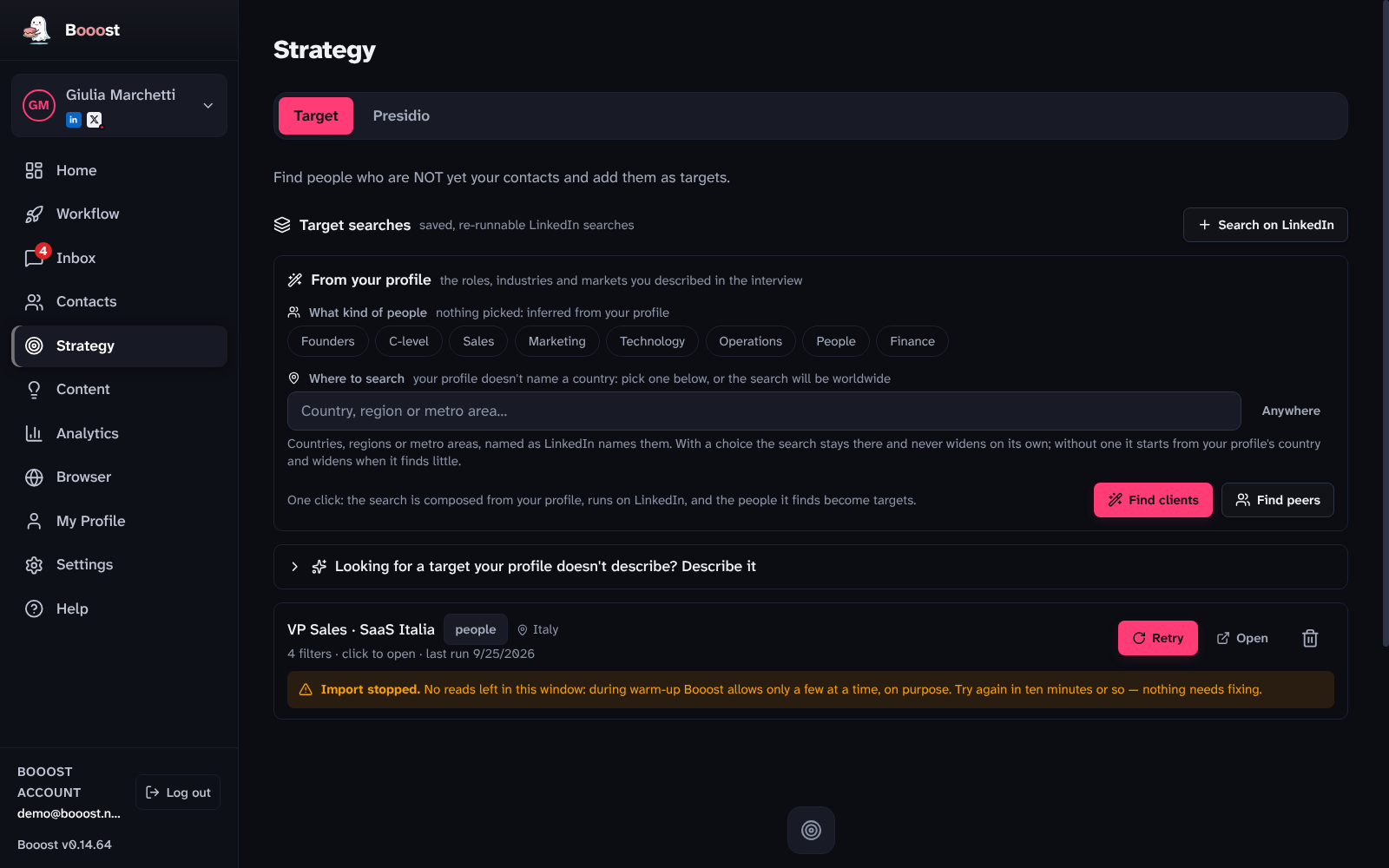
- "Find clients" / "Find peers" — one click, in the "From your profile" box. Booost reads My Profile (and your Audience persona, if you defined one), composes a people search, runs it and imports the results. "Find clients" looks for the people who could buy what you offer; "Find peers" looks for voices in your own field, to show up and comment. The "What kind of people" chips narrow these two searches only: pick none and the level is inferred from how you described your audience. Pressing the button again later walks deeper into the same search. (The empty target list offers the same thing as "Populate from my profile", which picks clients or peers from your strategic goal.)
- "Looking for a target your profile doesn't describe? Describe it" — for a campaign, a market or an industry that isn't yours. Write a sentence like "CEOs of Italian recruiting firms" and the AI turns it into a LinkedIn search, which you then refine with LinkedIn's own filters. You don't need this box for the searches from your profile.
- "Search on LinkedIn" — compose the search yourself, with whatever filters you like, and save it.
Where to search is the row just above the buttons. By default it shows the country of your LinkedIn profile, and the search starts there and widens on its own (the countries of the languages you speak, then the markets you named, then the world) when it finds few people. Type a country, a region or a metro area — the names are LinkedIn's own — and pick it: from then on the search stays exactly there, in as many places as you add, and never widens by itself. "Anywhere" removes the location filter; "Back to your profile's country" returns to the default. Each saved search shows where it looks, in words, next to its name.
In all three cases the result is a saved search, which stays in the list and can be re-run whenever you like with "Add to targets".
When an import stops
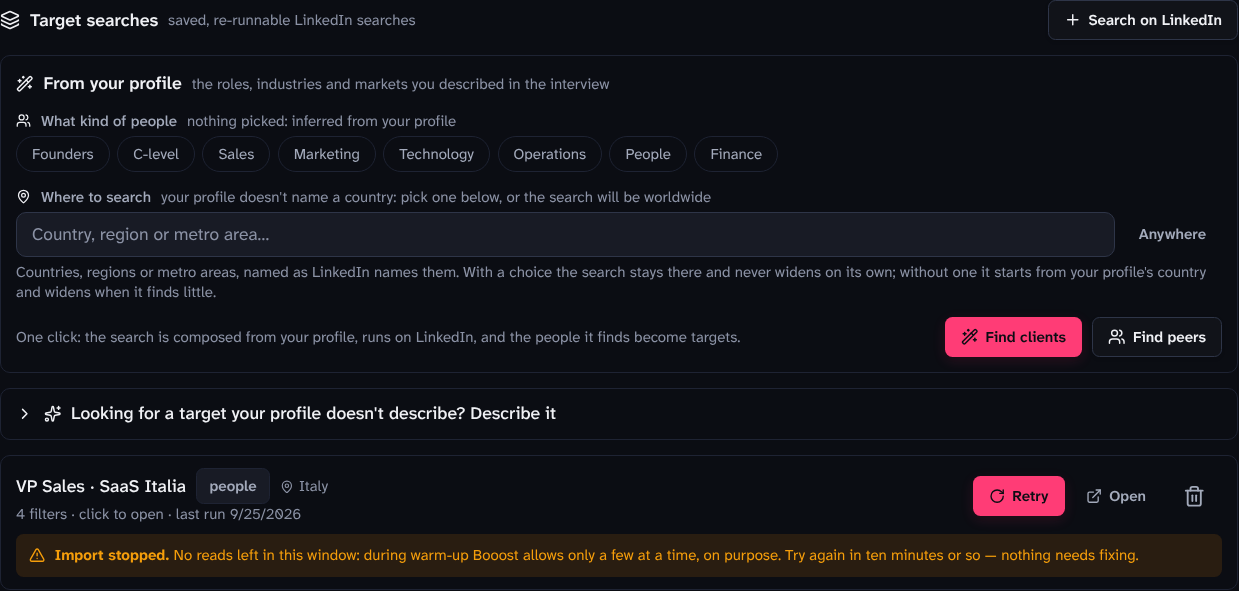
An import reads LinkedIn live, and reading LinkedIn has rules: the operating hours you set, the warm-up read budget, the anti-ban pacing. When one of those says no, the import stops — and the search remembers it.
The reasons you will see most often, and what they want:
- No reads left in this window — the anti-ban budget. Wait ten minutes or so. Nothing needs fixing.
- Outside operating hours — Booost only works within the window set in Settings → General. Try again inside it, or widen it.
- LinkedIn session expired — log back in from the Browser page, then retry.
- LinkedIn took too long to answer — it happens. Press "Retry".
- The search is too broad — at least three filters are required. Importing a too-broad search is the fastest way to get blocked.
The affinity bar
The affinity card is the heart of this page, and the idea behind it is one thing: do not send the connection request cold. Warm the relationship first, and let the bar tell you when.
Every kind of interaction carries a weight:
- I commented on their post — +10
- they replied or reacted to my comment — +15
- I reacted to their post — +3
- I posted on one of their topics — +3
- I visited their profile — +2
- a touch through a mutual connection — +2
The score cools down over time, because silence is information: a relationship left alone for weeks is not as warm as you left it.
The threshold is the tick on the bar: 60 by default, editable per target. It is the "warm enough" line.
At the threshold the button unlocks and the AI drafts a note grounded in what you actually logged. You read it, copy it and send it yourself. "Next action" always suggests the cheapest useful touch for where the bar stands.
The statuses, and the one that counts mechanically
The status is yours to set: Watching (keeping an eye on them) → Warming (interacting) → Requested → Connected or Abandoned.
Only one transition does anything beyond the label: moving from "Requested" to "Connected" or "Abandoned" records the outcome into the Outcomes report at the top of the page, which shows the acceptance rate per score band.
That is how you learn at which score your requests actually get accepted, and whether the threshold you set is tuned right or is still just the default number.
Introductions beat cold requests
If a mutual connection exists, "Reach strategy" shows you who can introduce you and drafts the message to send that person.
An introduction converts far better than a cold request: when the path exists, prefer it.
Topics on X
Watched Pages are LinkedIn. On the Presidio tab, connect an X channel and a third box appears: "Topics". Pick the words you would type into search, choose to Like, Repost, or both, and set when to search — Booost reads the latest posts on that topic and acts on a few of them, never the same author twice in a week. On LinkedIn, searching by topic is coming soon.